Office tasks that take longer than you think? Why not set them up to run on Google Apps Script?

A bookings sheet filled in from emails (recreated demo screen)Invoice PDFs made per client (recreated demo screen)A weekly report made automatically (recreated demo screen)Recreated demo screenIllustration of a woman at a laptop with an idea

All demo data is fictional. Times are illustrative.

Small automation: from 1 day, from ¥15,000

Standard automation: about 1 week or more, from ¥50,000

Small scope: one sheet, one process, one notificationDays are counted from the day we agree on the details.

Ask about your taskSee the demos

Copying sign-up emails into a sheet, making PDFs from daily reports and similar work, automated in the Google account you already use.

For example

A small automation can start in 1 day.See pricing

Which task eats your time?

Sign-ups & requestsStop copying sign-up and request emails into a spreadsheet by hand Invoices, client reports & weekly summariesStop making a PDF for each client by hand and rebuilding the same weekly numbers Fixing an existing scriptYour Apps Script has stopped, throws errors, or nobody left knows how it works

Demos

All demo data is fictional. Times are illustrative.

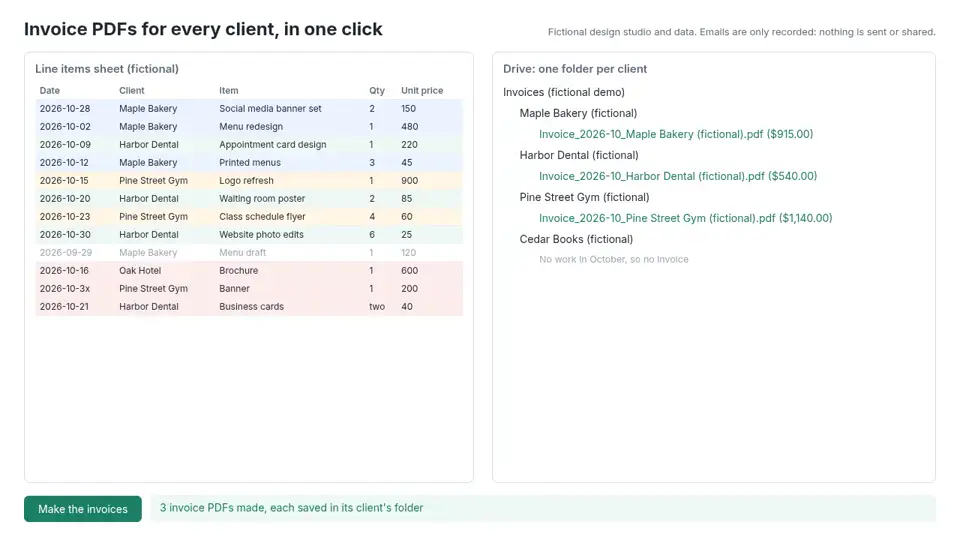
Monthly invoice PDFs per client

This is a recreated screen to explain the flow, not a recording of the actual Google screens.

The problem
making a PDF for each client by hand and rebuilding the same weekly numbers
What it does
builds each client's invoice PDF from the line items sheet and files it in that client's folder
What changes (example)
about 2 hours a month becomes one click, about a minute
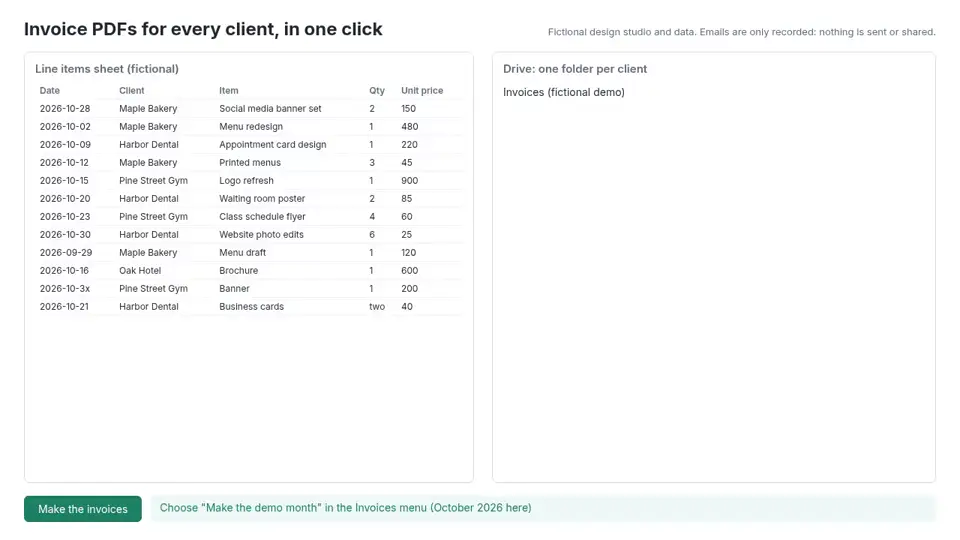
Recreated demo screen: The line items sheetRecreated demo screen
Before (example): filter each client's lines, make a PDF and file it, about 2 hours a month
Recreated demo screen: PDFs filed in a folder per clientRecreated demo screen
After (example): one click makes every client's invoice in about a minute, filed in each client's folder, with each client's email drafted in a list for you to review. The same month is never invoiced twice

SheetsDrivePDF

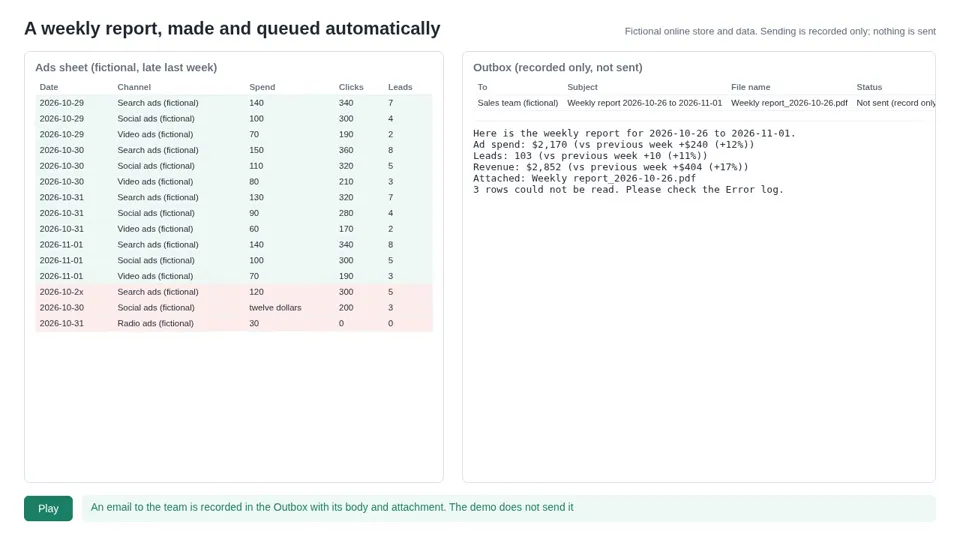
Add-on: weekly or monthly summary

Before (example): about 1 hour every Monday

The same spreadsheet can also produce a summary every Monday morning: totals, week-over-week changes in the same layout each time, and a PDF. Rows it can't read are left out and flagged, and the same week is never made twice.

TotalsWeek over weekTime trigger

No email permission is used. Emails, including the one to the team, are only listed, not sent.

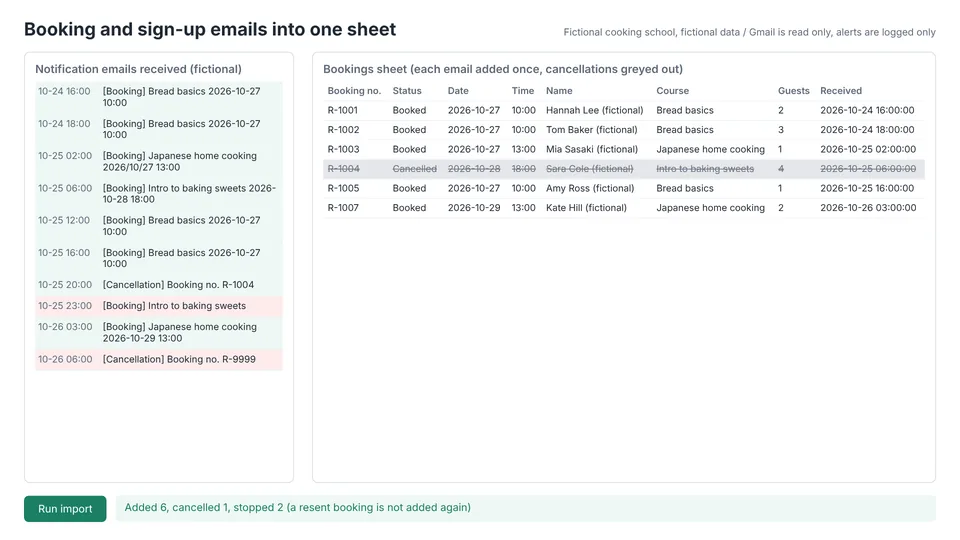
Sign-up and request emails into one sheet (bookings supported)

The problem
copying sign-up and request emails into a spreadsheet by hand
What it does
reads new notification emails about every 10 minutes and adds one row per email
What changes (example)
the morning copy-typing mostly goes away
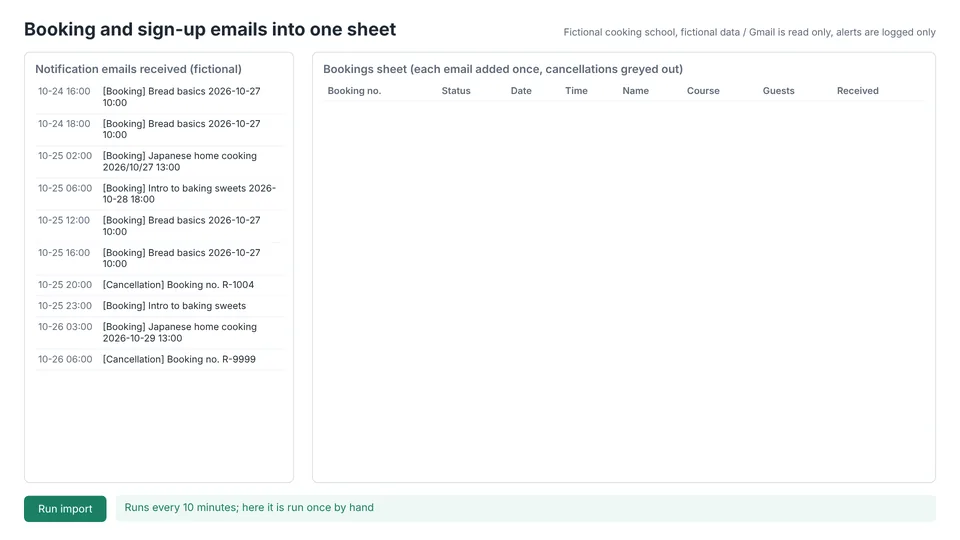
Recreated demo screen: notification emails received and an empty bookings sheetRecreated demo screen
Before (example): read each new email and type the details into a sheet every morning
Recreated demo screen: bookings sheet with rows added and a cancellation greyed outRecreated demo screen
After (example): new emails are added to the sheet automatically about every 10 minutes. The same email is never added twice, cancellations are marked, and remaining places per slot are counted

This is a recreated screen to explain the flow, not a recording of the actual Google screens.

GmailSheetsTime trigger

Available as a service. I can walk you through how it works on request.

Permissions for each demo

Monthly invoice PDFs per client: Permissions needed (3)
Edit this spreadsheet
To read the line items and write the invoice records and the Outbox. No other spreadsheet is opened.
Create and manage only the files this script makes
To make the PDFs and their folders. It can't see other files in your Drive.
Connect to an external service
Used only to call Google's own conversion that turns the sheet into a PDF. Nothing outside Google is contacted.
Monthly invoice PDFs per client: Extra permission for the summary (1)
Run on a schedule (trigger)
Only if you use the summary, to run every Monday morning in your time zone.
Sign-up and request emails into one sheet (bookings supported): Permissions needed (3)
Edit this spreadsheet
To write the sign-up list. No other spreadsheet is opened.
Read Gmail
To read the sign-up and request notification emails (including bookings and cancellations). Nothing is sent, deleted or relabeled.
Run on a schedule (trigger)
To check for new emails about every 10 minutes.

Fixing, maintaining and troubleshooting existing scripts

I also take on Apps Script projects that are already running. Typical requests:

How I approach it

  1. I look at it: with view access to the script and the sheet (or screenshots of the execution log), I check the error and the execution log.
  2. I send the cause and a quote: a short note on where it breaks and what the fix changes, sent with a quote.
  3. I fix it on a copy and test: With edit access for the duration of the fix, I keep a copy of the original script, make the fix, and test it on sample data.
  4. Optional: an alert when it fails: if you want, I add an error log sheet or an alert when a run fails.
  5. A short guide on what changed: what changed, and what to check if the same thing happens again.

Ongoing maintenance can be a regular check-up or on request, whichever suits you.

Afterwards I remove my access as in steps 3–5 of "Removing my access after delivery".

How it works

  1. 1Talk it throughA line or two about the task
  2. 2QuoteThe approach and a fixed price
  3. 3PrototypeYou see it working on fictional data
  4. 4DeliveryIt runs again from your account
  5. 5Written guideHow to use it and what to check

Scope and pricing

Small automation: from 1 day, from ¥15,000

Standard automation: about 1 week or more, from ¥50,000

A small automation covers one sheet, one process and one notification. Days are counted from the day we agree on the details.Before starting, we agree together on what will be done and what the finished result looks like. The work is built to that agreement, so there is less back-and-forth over rework.

The price is agreed before I start, and fixes in the first month after delivery are free.

FAQ

What permissions does it need?

Only what each automation needs. The details are listed under each one.

Where is the data stored?

It runs in your Google account, and the PDF conversion uses Google's own service.

Do you keep access after delivery?

No. I remove it as in "Removing my access after delivery" and check it with you.

What about changes after delivery?

You get a written guide, and fixes are free for one month after delivery. After that, fixes and maintenance work the same way as "Fixing, maintaining and troubleshooting existing scripts" above.

Can you fix a script someone else wrote?

In most cases, yes. I look at it first and tell you whether and how it can be fixed before any work starts.

Which time zone does it use?

Yours. It is set in two places in the script (Project Settings > Time zone, and one line in the settings file), and the written guide shows how to change both.

Removing my access after delivery

The automation runs inside your organization's Google account. I only need edit access while I build it, and I remove it at delivery in this order. The wording on screen may differ slightly.

  1. Clear up my test runs (done by me): Files made during my test runs are owned by my account, not yours, so I delete them before delivery. Then I run "Reset the demo", which also clears the saved folder records, so the run in step 2 makes new folders. If there is a trigger, I delete mine from the clock icon (Triggers) on the left edge of Apps Script. Finally, I remove my own account's connection to the script: Google Account > Security > Your connections to third-party apps & services.
  2. Run it again from your account: open the spreadsheet in your account, go to Extensions > Apps Script, do the first run and allow the permissions. If the automation uses a trigger, create it here too. From then on it runs as your account, and new files and folders are owned by you.
  3. Remove me from the spreadsheet: Share (top right) > the menu next to my address > Remove access > Save.
  4. Remove me from your folder (only if you added me to a parent folder of yours): in Drive, right-click that folder > Share > Share > Remove access next to my address > Save.
  5. Check: the Share list shows only your people. If there is a trigger, the Apps Script Triggers screen shows exactly one, owned by your account.

Send me an email. A line or two about the task is enough, and I will reply with how I would fix or build it and how we would work.

Email me

Ask about your task